
Signage hardware compatibility: Key factors for seamless displays
TL;DR:
- Hardware compatibility ensures reliable content delivery and reduces downtime in digital signage systems.
- Different industries have specific signage brightness, security, and performance requirements for optimal results.
- Proper evaluation, ongoing maintenance, and strategic hardware choices are key to successful scalable deployments.
Most businesses assume any screen plugged into any device will work for digital signage. That assumption is wrong, and it costs real money. Mismatched hardware leads to frozen displays, unreliable content delivery, and missed communication opportunities across your entire organization. Whether you operate in retail, hospitality, healthcare, or education, the hardware decisions you make today directly shape how well your digital signage performs tomorrow. This guide breaks down exactly what signage hardware compatibility means, what to check before you buy, and how to avoid the most common mistakes that derail digital signage deployments.
Table of Contents
- Understanding signage hardware compatibility
- Key compatibility requirements by industry
- Evaluating players, displays, and CMS for compatibility
- Common compatibility pitfalls and how to avoid them
- Why true compatibility is more than matching specs
- Connect with solutions for seamless signage compatibility
- Frequently asked questions
Key Takeaways
| Point | Details |
|---|---|
| Compatibility is critical | Seamless integration between displays, media players, and CMS is essential for reliable messaging. |
| Industry-specific needs | Retail, hospitality, healthcare, and education each require unique hardware features for effective signage. |
| BrightSign offers reliability | BrightSign stands out with an ultra-low failure rate for mixed-brand environments. |
| Testing prevents pitfalls | Validating hardware and CMS sets before deployment avoids common compatibility failures. |
| Strategic impact | Hardware compatibility affects not just operations but guest experience, security, and ROI. |
Understanding signage hardware compatibility
Signage hardware compatibility refers to how well your displays, media players, and content management system (CMS) work together as one integrated system. When these three components are aligned, content plays reliably, updates push on schedule, and your messaging reaches audiences without interruption. When they are not aligned, you get crashes, blank screens, and support headaches.
Compatibility means seamless integration of screens, players, and software. That sounds simple, but in practice it involves checking several technical layers:
- Display specifications: Resolution, brightness (measured in nits), panel type (LCD, LED, OLED), and connectivity ports (HDMI, DisplayPort)
- Media player operating system: Android, Windows, Linux, or proprietary OS platforms like BrightSign OS
- CMS requirements: Minimum hardware specs, supported OS versions, network protocols, and security features
- Network infrastructure: Bandwidth requirements, firewall settings, and remote management capabilities
When any of these layers are out of sync, your signage workflow breaks down. A CMS that requires Windows 10 will not run smoothly on an older Android player. A display rated for indoor use will wash out in a sunlit retail window. These mismatches cause downtime, reduce audience engagement, and undermine the trust your teams place in the system.
For businesses focused on the guest experience benefits of digital signage, poor hardware compatibility is especially damaging. A frozen screen in a hotel lobby or a blank menu board in a restaurant sends the wrong message entirely.
BrightSign media players report a failure rate of under 0.1%, making them one of the most reliable hardware choices for demanding signage environments where uptime is non-negotiable.
Reliability at that level is only possible when hardware and software are built to work together. Compatibility is not a luxury feature. It is the foundation of any effective digital signage deployment.
Key compatibility requirements by industry
Different industries place very different demands on signage hardware. What works in a university hallway will not necessarily work in a hospital corridor or a retail storefront. Understanding your sector’s specific needs is the first step toward making smart hardware decisions.
Brightness needs range from 500 nits in standard retail settings to 2,500 nits for high-visibility or semi-outdoor environments. Getting this wrong means your content is either unreadable or your display burns out prematurely.
Here is a breakdown of key requirements by sector:
| Industry | Brightness | Player preference | CMS priority |
|---|---|---|---|
| Retail | 500 to 1,500 nits | Android, BrightSign | Scheduling, promotions |
| Hospitality | 400 to 800 nits | BrightSign, Windows | Menu boards, guest info |
| Healthcare | 300 to 600 nits | BrightSign, secure Android | HIPAA compliance, encryption |
| Education | 300 to 500 nits | Raspberry Pi, BrightSign | Low cost, scalability |
Retail environments need bright, eye-catching displays that can handle high-resolution promotional content. Menu boards and window-facing screens require higher nit ratings to cut through ambient light.

Hospitality venues rely on digital signage for wayfinding, menu boards, and real-time guest information. Robust players like BrightSign are preferred because BrightSign performance holds up in continuous-use environments like hotel lobbies and restaurant kitchens.
Healthcare has the strictest requirements. HIPAA (Health Insurance Portability and Accountability Act) compliance means your CMS must support data encryption and automatic screen timeouts. Choosing hardware that does not support these features creates legal and security risks.
Education institutions typically prioritize budget-friendly, scalable solutions. Raspberry Pi players and entry-level BrightSign units are popular because they offer solid performance at a lower cost per screen, making large campus deployments practical.
Pro Tip: In mixed-brand environments where you manage screens from multiple manufacturers, BrightSign players offer a consistent OS layer that reduces compatibility conflicts and simplifies CMS integration across your entire digital signage hardware fleet.
For more guidance on getting the most from your display setup, the AV signage tips on the DST Connect blog cover display optimization in detail.
Evaluating players, displays, and CMS for compatibility
Once you understand your industry’s requirements, the next step is a structured evaluation process. Rushing this step is where most organizations run into trouble. A methodical approach saves time, money, and frustration down the road.
Follow these steps to evaluate compatibility before committing to a full deployment:
- List your display specs: Note resolution, nit rating, panel type, and available ports for every screen in your project.
- Identify your player OS: Confirm which operating systems your shortlisted players support and match them against your CMS requirements.
- Check CMS minimum requirements: Review the CMS vendor’s hardware compatibility list. Confirm support for your player OS, network protocol, and any security features your industry requires.
- Verify security features: For healthcare and education, confirm that HIPAA-grade encryption and automatic timeouts are supported by both the CMS and the player hardware.
- Run a pilot deployment: Test the full system, including scheduling, remote updates, and content playback, on a small set of screens before rolling out organization-wide.
Here is a sample compatibility check table to use during your evaluation:
| Component | Spec to check | Pass/fail criteria |
|---|---|---|
| Display | Nit rating | Meets environment brightness needs |
| Media player | OS version | Supported by CMS vendor |
| CMS | Encryption support | Meets industry security standard |
| Network | Bandwidth | Handles content file sizes reliably |
| Mounting | Port access | Player connects without adapters |
For businesses already managing retail screens, this checklist maps directly onto your existing workflow. Teams managing restaurant or hospitality signage can apply the same logic, as covered in the signage workflow optimization guide.
Lessons from hardware comparison research across 1,000 installations show that Tizen and WebOS platforms perform well within their native ecosystems but create friction when mixed with third-party CMS platforms. Knowing this before you buy prevents expensive surprises.
Pro Tip: Always validate your CMS and hardware combination in a real pilot environment before full deployment. Lab tests do not replicate the network conditions, content load, and scheduling demands of a live setting.
Common compatibility pitfalls and how to avoid them
Even experienced teams make compatibility mistakes. The good news is that most of these pitfalls follow predictable patterns. Knowing them in advance puts you in a much stronger position.
Here are the most common issues and how to address each one:
- Mixing incompatible operating systems: Using Android players with a Windows-only CMS, or vice versa, creates playback failures and update errors. Always confirm OS compatibility before purchasing players.
- Ignoring CMS security requirements: In healthcare especially, overlooking encryption and timeout features is not just a technical gap. It is a compliance risk. Verify security features at the CMS and hardware level before deployment.
- Underestimating brightness needs: A display that looks great in a showroom can be completely unreadable in a bright retail window or sunlit corridor. Always test displays in the actual installation environment.
- Skipping firmware updates: Outdated firmware on players or displays can break CMS compatibility even when the original setup worked perfectly. Build firmware review into your maintenance schedule.
- No centralized hardware tracking: When you manage screens across multiple locations, losing track of player models and OS versions leads to inconsistent performance. A master hardware list prevents this.
Mixed-brand environments benefit significantly from BrightSign’s ultra-low failure rate, which is why many multi-site organizations standardize on a single player platform even when their display brands vary.
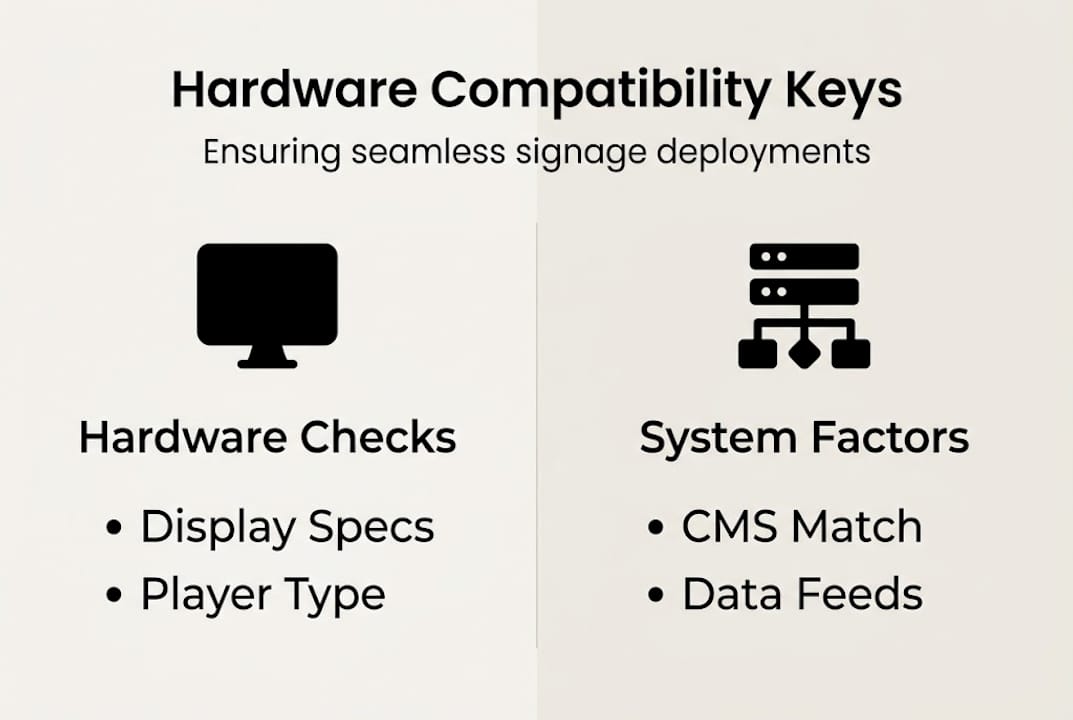
For organizations using data-driven signage strategies, compatibility also extends to data feed integrations. Your player and CMS must both support the protocols your data sources use, whether that is RSS, JSON, or API-based feeds.
Pro Tip: Centralize your compatibility checks using a master hardware list that records every screen model, player OS version, CMS version, and last firmware update date for each location. This single document prevents most compatibility failures before they happen.
Why true compatibility is more than matching specs
Here is something most hardware guides will not tell you: matching specs is the easy part. The harder part is ensuring that your hardware choices support your actual business goals, not just your technical checklist.
We have seen organizations tick every compatibility box on paper and still end up with signage that underperforms. Why? Because they treated compatibility as a one-time setup task rather than an ongoing operational strategy. Real-world integration testing, regular firmware reviews, and CMS updates are all part of keeping a compatible system running well.
True compatibility also means your signage hardware supports the audience engagement strategies you want to execute. A CMS that cannot push real-time data to your displays, or a player that cannot handle high-resolution video, limits what your content team can create. Hardware decisions made at the start of a project shape what is possible for years to come.
The organizations that get the most from digital signage treat hardware compatibility as a strategic investment. They ask not just “does this work?” but “does this scale with us, secure our data, and support the experiences we want to deliver?” That shift in thinking is what separates signage that communicates from signage that truly engages.
Connect with solutions for seamless signage compatibility
Getting signage hardware compatibility right does not have to be complicated. DST Connect supports Android, Windows, and URL-based media players, giving you the flexibility to build a compatible setup across retail, hospitality, healthcare, and education environments. Our platform includes over 700 professionally designed templates, a drag-and-drop editor, and a cloud-based dashboard for managing screens worldwide.
Visit DST Connect to explore compatible hardware options and platform features. If you prefer setup guidance in your language, we offer French instructions and Italian instructions to support your team. Ready to assess your current setup or plan a new deployment? Connect with our team for expert advice tailored to your industry.
Frequently asked questions
What does signage hardware compatibility mean?
Signage hardware compatibility means your screens, media players, and CMS work together seamlessly to deliver reliable digital communication without interruptions or technical conflicts.
How do I check if my signage hardware is compatible?
Compare your display specs, player OS, and CMS requirements side by side, then run a pilot test in a real environment before committing to a full deployment.
Why is BrightSign preferred for mixed-brand environments?
BrightSign’s failure rate is under 0.1%, making it exceptionally reliable for diverse multi-brand setups where consistent uptime is critical.
What hardware specs matter for healthcare digital signage?
Healthcare digital signage requires a CMS with HIPAA-compliant encryption and automatic timeout functionality, along with hardware that supports these security features natively.
Recommended
Enjoyed this blog?
Continue with the previous or next article and discover more ideas, insights and inspiration from DST Connect.