
Essential checklist for healthcare digital displays in clinics
TL;DR:
- Accessibility standards like ADA and WCAG require specific contrast, size, touch targets, and mounting criteria.
- Centralized content management with approval workflows and schedules ensures accurate, compliant, and secure messaging.
- Effective patient engagement depends on clear, short content, proper placement, and ongoing staff training and audits.
Selecting and deploying digital displays in a healthcare clinic is not simply a technology decision. Every screen you install becomes part of the patient experience, carrying real consequences for communication, compliance, and operational flow. A missed accessibility requirement can create barriers for patients with disabilities. Poorly managed content can expose sensitive information or leave waiting rooms filled with outdated messaging. A practical, structured checklist gives healthcare administrators and clinic managers a reliable way to evaluate every display decision before it becomes a costly problem.
Table of Contents
- Accessibility standards: ADA and WCAG compliance for displays
- Content management: Workflow, scheduling, and governance
- Patient communication: Types of display content and engagement tips
- The complete digital display checklist for healthcare clinics
- A fresh perspective: What clinics often miss in digital display deployments
- Bring your checklist to life with DST Connect solutions
- Frequently asked questions
Key Takeaways
| Point | Details |
|---|---|
| Meet accessibility standards | Every display must comply with ADA/WCAG for color contrast, text size, touch targets, and mounting. |
| Centralized content workflow | A robust CMS simplifies approvals, updates, multilingual delivery, and patient-sensitive information control. |
| Impactful patient communication | Effective displays deliver timely, relevant, and clear information that reassures and engages all visitors. |
| Routine audits and updates | Regular review and content updates ensure compliance, relevance, and operational value for clinics. |
Accessibility standards: ADA and WCAG compliance for displays
Accessibility is not optional in healthcare environments. The Americans with Disabilities Act (ADA) and the Web Content Accessibility Guidelines (WCAG) set clear, enforceable standards that apply to digital displays in public-facing spaces, including clinics and medical offices. Ignoring these standards puts your clinic at legal risk and, more importantly, excludes patients who need clear communication the most.
When you optimize healthcare signage for accessibility, the starting point is visual clarity. ADA/WCAG standards require a minimum color contrast ratio of 4.5:1 for normal text, a minimum text size of 16px that scales to larger sizes, touch targets of at least 44×44 pixels, captions on all video content, and physical mounting within a 15 to 48 inch reach range with 30×48 inches of clear floor space.
Here is a quick accessibility checklist for your displays:
- Color contrast: Minimum 4.5:1 ratio between text and background
- Text size: At least 16px, scalable for low-vision users
- Touch targets: Minimum 44x44px for interactive elements
- Video captions: All video content must include closed captions
- Mounting height: Screens accessible within a 15 to 48 inch reach range
- Clear floor space: At least 30×48 inches in front of each interactive display
- Glare reduction: Anti-glare screens or positioning to avoid direct light
| Accessibility requirement | Standard | Notes |
|---|---|---|
| Color contrast ratio | 4.5:1 minimum | Applies to normal body text |
| Text size | 16px minimum | Must be scalable |
| Touch target size | 44x44px minimum | For interactive displays |
| Mounting height | 15 to 48 inches | Reach range for wheelchair users |
| Clear floor space | 30×48 inches | In front of interactive units |
| Video captions | Required | All video content |
Pro Tip: Test your displays with real users, including wheelchair users and patients with low vision, before finalizing installation. What looks compliant on paper may not work in practice.
For broader installation guidance, AV tips for signage can help you align hardware choices with these accessibility requirements from the start.
With accessibility rules clear, the next step is ensuring effective content management and compliance.
Content management: Workflow, scheduling, and governance
A digital display is only as effective as the content running on it. In healthcare, content management carries extra weight because outdated, inaccurate, or sensitive information can confuse patients and create compliance risks. A centralized content management system (CMS) is the foundation of effective governance.
Here are the core CMS and workflow steps every clinic should follow:
- Centralize control: Use a single CMS platform to manage all screens across locations, preventing inconsistent messaging.
- Set approval workflows: Require content to pass through a formal review before going live, reducing errors and unauthorized updates.
- Schedule content in advance: Use scheduling tools to rotate content based on time of day, day of week, or patient volume patterns.
- Restrict file types: Limit accepted formats to approved media types to prevent security vulnerabilities.
- Avoid PHI on displays: Never display personal health information (PHI) on any screen visible to the public.
- Support multilingual content: Provide content in the primary languages spoken by your patient population.
- Enable emergency overrides: Ensure your CMS can push urgent messages instantly to all screens simultaneously.
Centralized CMS with scheduling and real-time integration, including wait times and EHR data, combined with governance controls like approval workflows, no PHI policies, multilingual and high-contrast content, and weekly or monthly rotation, form the backbone of compliant healthcare signage.
| Feature | Basic setup | Best practice |
|---|---|---|
| Content approval | Ad hoc | Formal multi-step workflow |
| Scheduling | Manual updates | Automated time-based scheduling |
| PHI policy | Informal | Strict no-PHI rule enforced by CMS |
| Language support | English only | Multilingual with high-contrast options |
| Emergency messaging | Email alerts | Instant CMS override to all screens |
For practical guidance on building content that performs, signage content creation tips offer actionable strategies tailored to high-traffic environments.
Pro Tip: Set a recurring calendar reminder to audit all display content monthly. Stale content, such as outdated hours or expired promotions, erodes patient trust faster than you might expect.
Once workflow and governance are handled, it is crucial to focus on the types of information that drive patient engagement and operational improvement.
Patient communication: Types of display content and engagement tips
The best-managed display system still falls short if the content itself does not resonate with patients. Healthcare clinics serve diverse populations, often under stress, so content must be clear, reassuring, and immediately useful.
Effective patient-facing content categories include:
- Wait time displays: Real-time estimated wait times reduce anxiety and improve perceived service quality
- Wayfinding and directions: Clear maps and directional cues reduce staff interruptions and patient frustration
- Health education content: Short, digestible health tips and preventive care reminders add value during wait times
- Emergency and safety notices: Instant alerts for evacuation routes, weather emergencies, or health alerts
- Appointment reminders and check-in prompts: Reduce missed appointments and front-desk congestion
- Multilingual information: Critical for clinics serving non-English-speaking communities
CMS scheduling with real-time integration allows clinics to display dynamic wait times, rotate health education content, and push emergency overrides, all from a single dashboard without manual screen-by-screen updates.
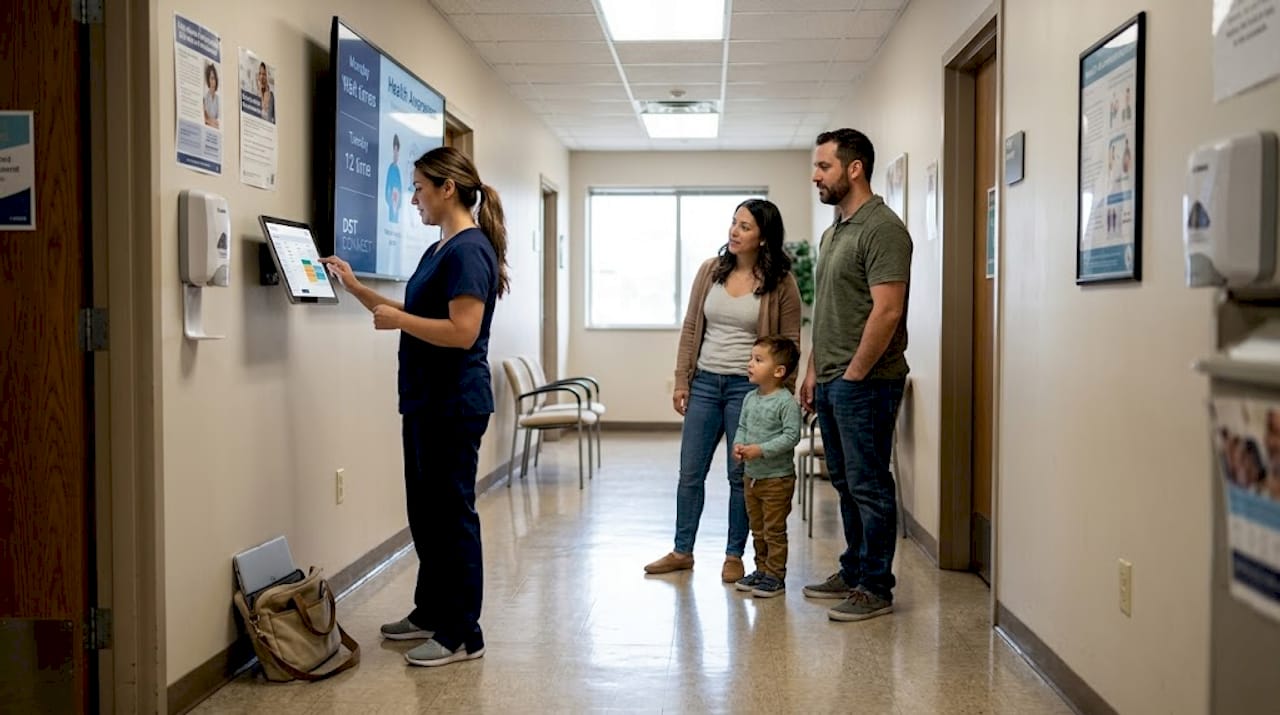
Engagement goes beyond content selection. Placement matters. Screens positioned at eye level in waiting areas, near check-in desks, and at key decision points in hallways see significantly higher engagement than screens mounted in corners or above natural sightlines.
Pro Tip: Keep individual content slides to 10 to 15 seconds. Patients in waiting rooms have divided attention, so shorter, visually clear messages outperform text-heavy slides every time.
Privacy and medical sensitivity are non-negotiable. Never display content that could identify a patient or reference specific diagnoses in public areas. Even general health statistics should be framed carefully to avoid causing unnecessary alarm.
To see how other service-oriented environments handle engagement, how digital signage enhances guest experience offers transferable strategies. For deeper tactics, engaging signage strategies covers proven approaches for high-traffic, high-stakes settings.
Now it is time to pull everything together in a practical checklist that clinics can use to assess their digital displays.
The complete digital display checklist for healthcare clinics
Use this consolidated checklist to evaluate every display deployment in your clinic. Work through it before installation, during onboarding, and at each quarterly review.
- Verify ADA/WCAG compliance: Confirm 4.5:1 color contrast, 16px minimum text, 44x44px touch targets, captions on all video, and correct mounting height and floor clearance.
- Audit physical placement: Check sightlines, lighting conditions, glare, and proximity to patient flow paths.
- Configure your CMS: Set up centralized control, user roles, approval workflows, and scheduling before going live.
- Enforce a no-PHI policy: Document and enforce rules preventing any personal health information from appearing on public screens.
- Build a content calendar: Plan content rotation on a weekly or monthly cycle, with seasonal and campaign-based updates.
- Set up emergency override: Test your emergency override capability to confirm all screens update instantly when triggered.
- Add multilingual content: Identify the top languages in your patient population and create high-contrast versions of key messages.
- Train staff: Ensure all content administrators understand the CMS, approval process, and content guidelines.
- Run an accessibility audit: Conduct a live test with diverse users before and after launch.
- Schedule quarterly reviews: Set recurring reviews to assess content relevance, compliance status, and technical performance.
| Checklist area | Key action | Review frequency |
|---|---|---|
| Accessibility | ADA/WCAG audit | Quarterly |
| Content governance | Approval workflow check | Monthly |
| PHI compliance | Content scan | Weekly |
| Emergency override | System test | Monthly |
| Multilingual content | Language review | Quarterly |
“A checklist is only effective when it is used consistently. Build it into your standard onboarding process for every new display and every content update cycle.”
For a deeper look at display design options, the digital display templates guide provides a useful reference for selecting layouts that meet both aesthetic and compliance needs.
A fresh perspective: What clinics often miss in digital display deployments
Most clinics focus heavily on the initial setup and then move on. That is where long-term success starts to slip. The checklist above covers the essentials, but there are three areas that consistently get overlooked after launch.
First, staff training is treated as a one-time event. In reality, staff turnover and CMS updates mean training needs to be ongoing. A system that no one knows how to use quickly becomes a liability rather than an asset.
Second, patient feedback is rarely collected. Clinics assume that if no one complains, the displays are working. But patients rarely complain about signage. They simply disengage. Building a simple feedback loop, even a brief survey at check-out, gives you real data on what is actually landing.
Third, accessibility audits are treated as a launch requirement rather than a continuous practice. Display hardware ages, software updates change rendering, and patient demographics shift. The growing demand for digital signage means standards are also evolving. Scheduling annual accessibility reviews is not overcautious. It is professional practice.
Bring your checklist to life with DST Connect solutions
Ready to put these checklist strategies into action? DST Connect gives healthcare clinics a user-friendly platform to manage every element covered in this guide. From centralized CMS control and approval workflows to multilingual content scheduling and emergency override capabilities, DST Connect is built to support the operational and compliance needs of modern clinics.
Explore the instructions for digital signage to get your system configured correctly from day one. Deepen your team’s skills through the digital signage training academy, where practical courses help administrators manage displays with confidence. Visit DST Connect to see how the platform aligns with your clinic’s specific goals and scale.
Frequently asked questions
What are the ADA and WCAG standards for healthcare digital displays?
ADA/WCAG standards require a minimum 4.5:1 text contrast ratio, 16px scalable text, 44x44px touch targets, and accessible mounting between 15 and 48 inches with 30×48 inches of clear floor space. These requirements apply to all public-facing digital displays in healthcare facilities.
How can clinics ensure patient privacy in digital display content?
Clinics must avoid displaying personal health information (PHI) on any public screen and use a centralized CMS with governance workflows to restrict sensitive content from going live without review.
What types of content are most effective for healthcare digital displays?
Effective content includes real-time wait times, wayfinding directions, health education slides, emergency alerts, and multilingual messaging tailored to the specific patient population your clinic serves.
How often should clinics update their digital display content?
Content should be rotated weekly or monthly on a scheduled basis, with emergency override capability in place to push critical updates to all screens instantly when needed.
Recommended
Enjoyed this blog?
Continue with the previous or next article and discover more ideas, insights and inspiration from DST Connect.